 DocRouter.AI
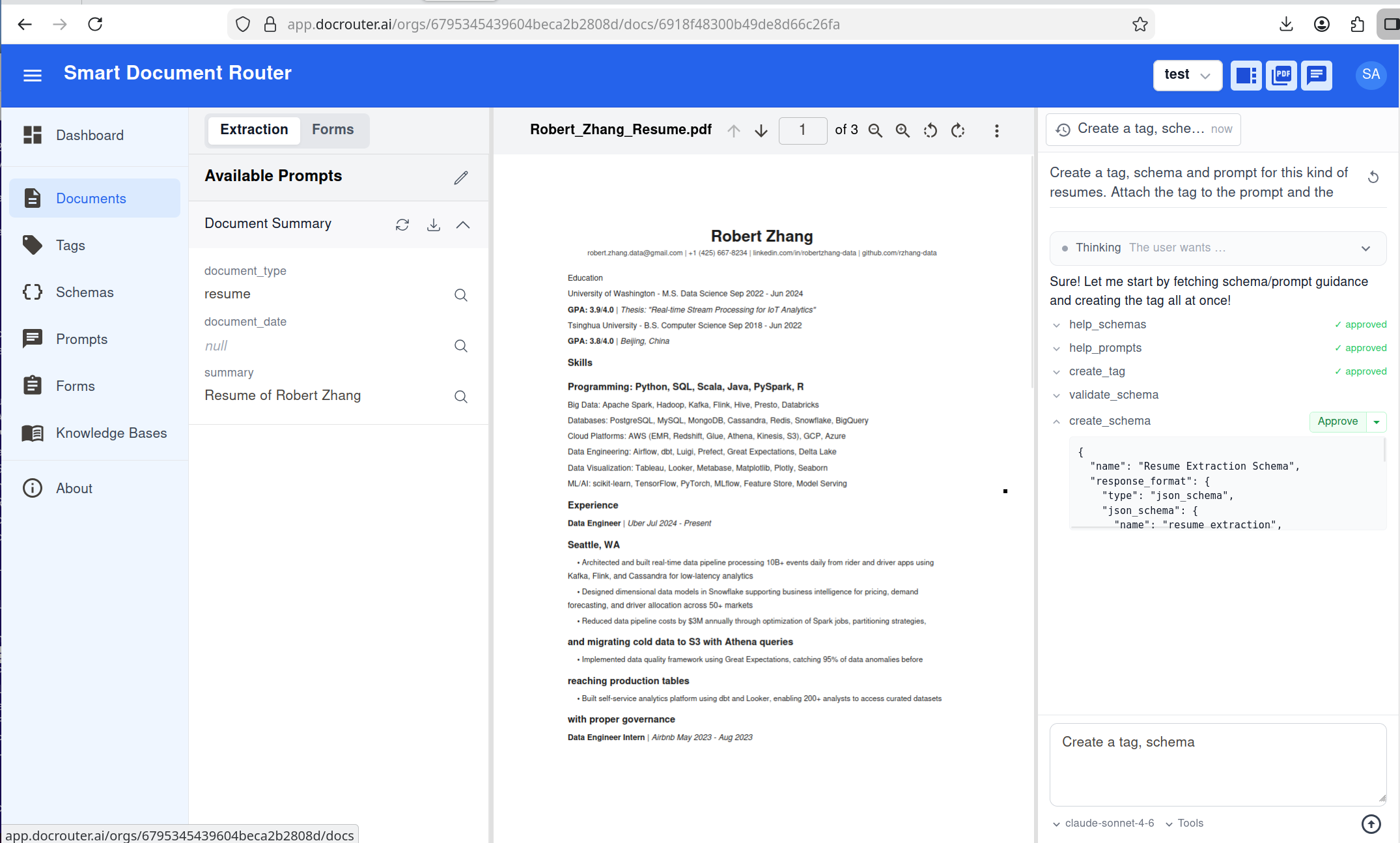
The Document Agent is the chat on the document page in DocRouter: you talk to an AI in the context of a single document to create or edit schemas, prompts, and tags, run extraction, and tweak results. This post explains why we built it and how we created it—the architecture and the decisions that shaped it.
Why we built it
We built the Document Agent to cut configuration time for parsing a yet-unseen document by about 90%.
Before: Schemas, prompts, and tags by configured by hand.
Now: Minutes: Plain language: AI proposes → you approve → extraction runs.
What the agent does
The agent is a tool-calling LLM scoped to one document. It sees the document’s metadata, an OCR text excerpt, optional @-mentions (schemas, prompts, tags you’ve referenced), and the current extraction. It has 25 tools: schema CRUD and validation, prompt CRUD, tag CRUD, document list/update/delete, get OCR text, run extraction, patch extraction fields, and two help tools (help_schemas, help_prompts).
- Read-only tools run automatically; read-write tools (create schema, run extraction, update document, etc.) can pause and ask the user to approve or reject each call.
- Conversations are stored in threads per document so you can resume or start a new one.
Architecture overview
Three layers matter:
- The agent loop — how we call the LLM and handle tool calls.
- The context we give the LLM (system message).
- The state we keep between requests (memory vs MongoDB).
Agent loop
The core is a loop:
- Call LLM with system message + conversation + tool definitions → get text and/or tool calls.
- If any tool call is read-write and not auto-approved: stop, persist turn state, return
turn_idand pending calls to the client. - Client shows approve/reject UI and calls POST /chat/approve with approvals.
- Backend executes approved tools, appends results, calls LLM once.
- If LLM returns more tool calls, return them to the client (repeat from step 2).
We cap tool rounds at 10 so a turn can’t run forever. The pause happens in the client, not in a long-running server loop.
Here’s the algorithm in plain form:
Figure 1: Agent loop.
Important: The LLM is not called once per request. Inside the loop, it can be called up to 10 times in a row when the model keeps returning auto-approved tool calls (e.g. read schema → read prompt → run extraction). Only when a write tool needs approval do we pause and return a turn_id; after the client approves, we call the LLM again (and may loop or pause again).
Context (system message)
Every turn gets a system message built from:
- Document ID and file name
- OCR excerpt of the document (truncated to ~8k characters so we don’t blow the context window)
- Resolved @-mentions — if the user referenced a schema, prompt, or tag, we resolve it server-side and inject the full content (e.g. full JSON schema) so the LLM doesn’t have to call
get_schemajust to see what they meant - Working state — the last
schema_revid,prompt_revid, and extraction result from this conversation, so the agent can say “run extraction with that prompt” without the user re-specifying IDs - Instructions — use
help_schemas/help_promptswhen creating or modifying those artifacts, and always callvalidate_schemabeforecreate_schemaorupdate_schemaso we never persist invalid schemas
Figure 2: How the system message is built.
What we store in memory
Browser memory: Tool approval lives in the client. When the backend returns a turn_id and pending tool calls, the UI shows approve/reject cards and holds the user’s choices in browser memory until they submit POST /chat/approve. Nothing about which tools the user approved is persisted on the server until that request is sent.
Session memory (server): When we pause for approval, we keep turn state in server memory—message list, pending tool calls, working state, model—keyed by turn_id, with a TTL of 5 minutes. The approve endpoint loads by turn_id, runs tools, then discards that state. We don’t persist it: if the user closes the tab or the server restarts, the turn expires and they can resend. So “in-flight approval” is deliberately ephemeral.
What we store in MongoDB
We persist two things that matter for the agent:
-
Threads (
agent_threads). Each document is a conversation thread:organization_id,document_id,created_by(user), plustitle,messages,extraction, optionalmodel, and timestamps. When a turn finishes (no more pending tool calls), we append the user and assistant messages and the latest extraction to the thread. Threads are what you list, load, and resume in the UI. -
LLM provider config (
llm_providers). We store which models are enabled and, for the document agent, which models appear in the chat dropdown. Per provider (Anthropic, OpenAI, Gemini, etc.):litellm_models_available— discovered from the providerlitellm_models_enabled— which of those the org has turned on for general uselitellm_models_chat_agent— the subset allowed in the document agent UI
Admins can enable many models for extraction but expose only a few in the agent. API keys (tokens) and enabled/disabled per provider live here too.
Tool definitions (which tools exist and whether they are read-only vs read-write) are not stored in MongoDB. They’re defined in code (the tool registry) and exposed via GET /chat/tools so the UI can show “these actions need approval.” That keeps the security model simple and consistent across environments.
Why MongoDB here? The database is document-oriented and schema-flexible by default, but we don’t treat it as a free-for-all.
- We run versioned migrations (same idea as SQL): a
migrationscollection tracks schema version; each migration can add indexes, rename or reshape collections, and backfill data. - Result: a strict, explicit schema we evolve in a controlled way—portability and the same regularity you’d expect from Postgres—while keeping MongoDB’s strengths: horizontal scaling (sharding, replica sets), flexible documents where we need them, one deployment story for structured and semi-structured data. In practice, agent threads and LLM provider config are as regular as relational tables; we just don’t pay the cost of rigid columns until we need to scale out.
Implementation stages
We built the Document Agent in three stages, each one shippable on its own and visible in the product.
Figure 3: Left-to-right implementation stages.
From left to right:
- Stage 1 — UI + FastAPI: we started with the core product surface—document list, schemas, tags, prompts—and added FastAPI endpoints for every UI action. Anything you can point-and-click in the app (create/edit schemas, prompts, tags; run extraction; manage documents) can also be exercised through REST APIs.
- Stage 2 — MCP server: we wrapped all document, schema, tag, and prompt APIs into a TypeScript MCP server. At this point, we could use external agents (e.g. Claude Code) to operate DocRouter via MCP, turning our REST surface into a tool catalog without changing the backend.
- Stage 3 — Document Agent UI + loop + caching: we then built the Document Agent UI, added dedicated Copilot FastAPI endpoints and the agent loop described above, and finally layered in LLM caching—provider-level prompt caching for system messages and MongoDB-based embedding caching—to keep the experience both fast and cost-efficient.
Key decisions
Read-only vs read-write tools
We split tools into two sets:
- Read-only (e.g.
get_ocr_text,list_schemas,validate_schema,help_schemas) never require approval—they’re safe to run as soon as the LLM asks. - Read-write (e.g.
create_schema,run_extraction,update_document) require approval by default. The client can sendauto_approve: true(run everything) orauto_approved_tools: ["run_extraction"](only those run without pausing).
That way power users can say “just run extraction when I ask” while still being prompted for “create a new schema.” The backend exposes GET /chat/tools returning the two lists so the UI can explain which actions will pause.
One LLM round per approve
When the user approves tool calls, we execute them and call the LLM once with the new tool results. If the LLM returns more tool calls, we return those to the client again—we don’t keep looping on the server. The reason is control: the user sees each batch of proposed actions and can approve or reject. If we looped server-side until “no more tool calls,” a single request could do many creates/updates before the user saw anything. So the “loop” is really a handshake: chat → (optional approve) → chat → (optional approve) → …
Sanitizing messages when loading from a thread
When the user resumes a thread, we send the saved messages back to the LLM. But the API requires that every assistant message with tool_calls is immediately followed by tool messages (one per call). If the user had left mid-approval or we stored a partial state, we might have an assistant message with tool_calls and no following tool results. So before building the LLM request we sanitize: we walk the message list and, for any assistant message with tool_calls, check that the next messages are tool results for those call IDs. If not, we strip the tool_calls from that assistant message and send it as content-only. That keeps the API happy and avoids confusing the model with an invalid history.
Working state in the loop
working_state (schema_revid, prompt_revid, extraction) is updated by the tool implementations as they run (e.g. run_extraction sets working_state["extraction"] and working_state["prompt_revid"]). The system message is built once per turn with the current working state. So when the agent says “I’ll use the prompt we just created,” the next LLM call already has that prompt_revid in the system message and the agent can call run_extraction without a prompt_revid argument (we use working state as default). Same for “update the total to 1,250”—the agent sees the current extraction JSON and can call update_extraction_field with the right path.
Streaming and approval
We support streaming (SSE) for the main chat endpoint: the client gets events for thinking chunks, text chunks, tool calls, tool results, and a final done payload. The approve endpoint is non-streaming: one request, one response. That keeps the approve flow simple (no need to stream a single round) and keeps the “pause for approval” contract clear: you get a full set of tool calls, you approve, you get one full response. Streaming is for the interactive chat experience; approve is for the control boundary.
Thinking blocks and API compatibility
Some models (e.g. Claude with extended thinking) return thinking_blocks in the response. When we continue the conversation (e.g. after tool execution), we must send those blocks back to the API in the right format—Anthropic requires a non-empty signature on each block. Our streaming path sometimes produces blocks without signatures, so we have a pass that only includes blocks that have a signature when we rebuild the message for the next call. We also avoid sending the thinking parameter when the last assistant message had tool_calls but no thinking_blocks, so we don’t trigger API warnings or rejections.
LLM caching
We use prompt caching at the provider level to make repeated calls cheaper and faster. For chat models that support prompt caching (via LiteLLM’s supports_prompt_caching), we convert the system message into content blocks with cache_control: {"type": "ephemeral"} so providers like Anthropic and OpenAI can reuse the long, stable system prompt across turns and tool rounds. We intentionally skip prompt caching for Gemini/Vertex—their cached-content APIs reject prompts under certain token thresholds, and our system prompts are often smaller than those limits—so for those providers we fall back to regular calls with no cache directive.
SPU and cost
Each LLM call in the agent (and each call inside run_extraction) checks SPU (our credit system) independently. We don’t reserve or estimate “total cost for this turn” upfront—we charge as we go. If the org runs out of credits mid-turn, that LLM call fails and we surface the error; the turn ends. That matches how the rest of the app works and avoids over-engineering reservation logic.
Frontend and API
The frontend includes:
- Chat panel — message list, input, model/tools settings
- Tool-call cards — approve/reject per call, with expandable arguments
- Thinking block — collapsible, with optional live timer
- Thread dropdown — list threads, create, load, delete
When the backend returns a turn_id and pending tool_calls, the UI shows the cards and disables send until the user approves or rejects. The same agent is exposed over REST: custom UIs or automation can call POST /chat (and POST /chat/approve when needed), with optional streaming and thread_id for persistence.
Summary
The Document Agent is a tool-calling LLM with:
- A bounded loop — LLM → optional user approval → tools → LLM again
- Rich context — document, OCR, @-mentions, working state
- What we store in memory (browser: tool approval; server: turn state) vs what we store in MongoDB (threads, LLM config)
Splitting read-only and read-write tools keeps approval predictable; one round per approve keeps the user in control; message sanitization keeps thread reloads valid; and working state keeps “what we just created” visible to the agent without extra round-trips. If you’re building something similar—an in-context agent that can read and write—this architecture is a solid starting point.
To use the Document Agent, open any document in DocRouter and open the Chat / Agent tab. For API details, see Document Agent in the docs.