
Quick Start — Get Extracting in Minutes
Overview
Get up and running with DocRouter in minutes. This guide walks you through the complete workflow from setup to automation. DocRouter transforms your document processing workflow through these key steps:
- Step 1 - Create a tag and a prompt
- Step 2 - Upload your first document with the tag
- Step 3 - See automatic extraction results
- Step 4 - Prompt Engineering to improve extraction quality
- Step 5 - Manual Automation using bulk actions
- Step 6 - Full Automation with REST API or Python SDK
- Step 7 - Visual automation with DocRouter Flows
We'll set up tags and prompts first so your documents process automatically upon upload.
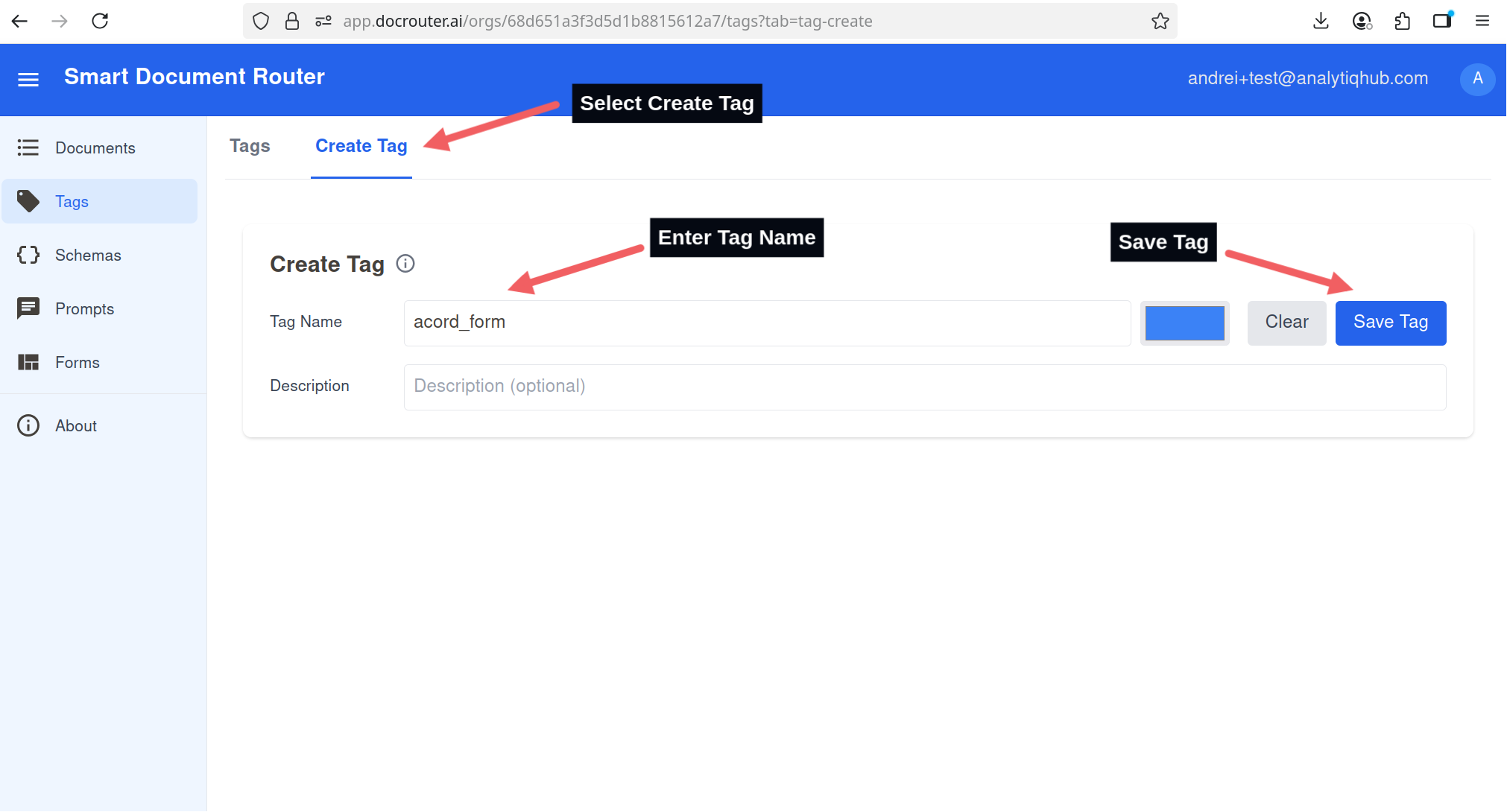
1. Create a Tag
- Go to Tags in the left sidebar.
- Click Create Tag.
- Enter a descriptive name (e.g.,
invoice). - Click Save tag.
2. Create a Prompt
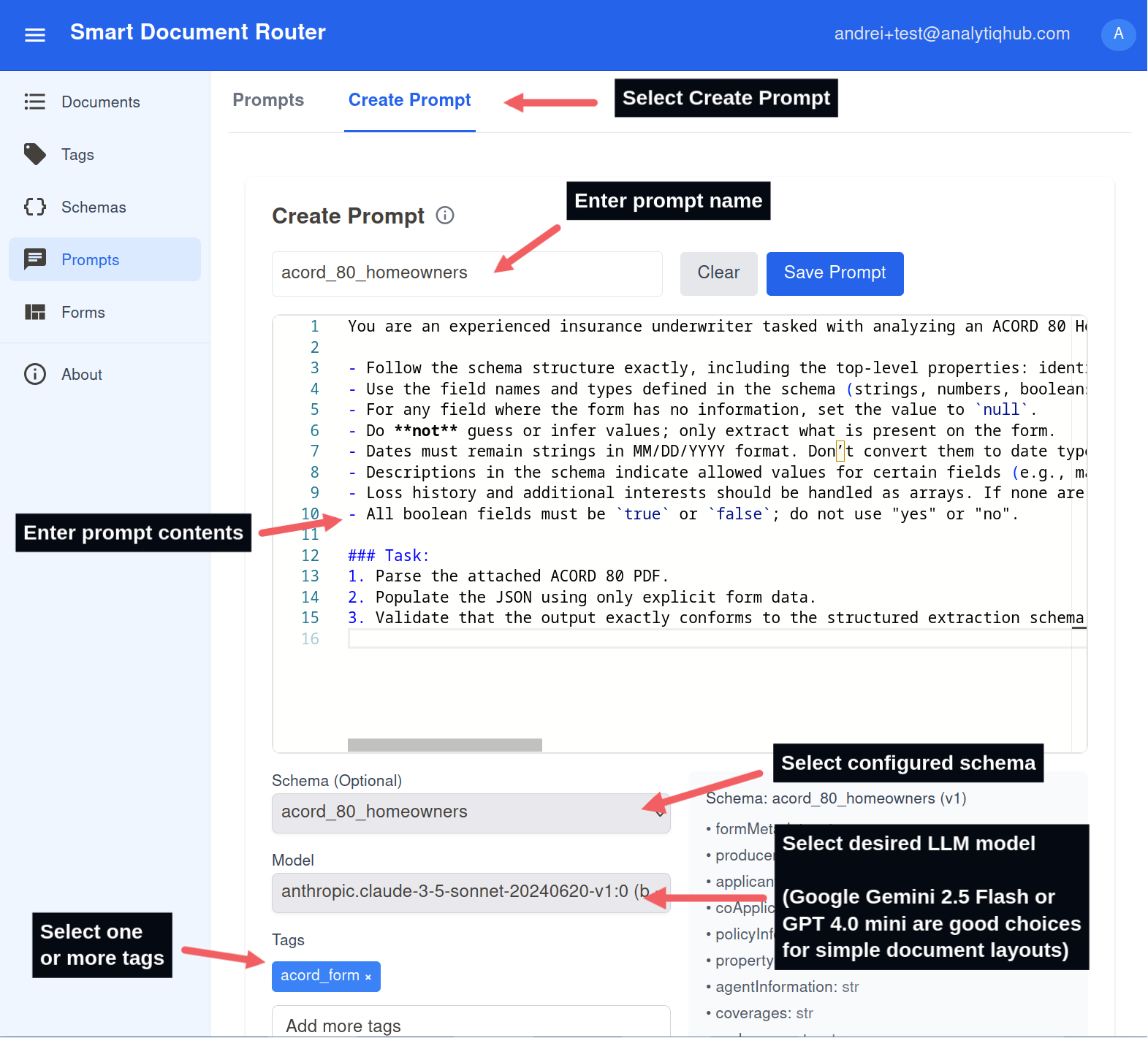
- Go to Prompts in the left sidebar.
- Click Create Prompt.
- Enter a name and instructions for the AI.
- Crucial: Assign the tag you just created.
- Click Save prompt.
Now, upload a file and apply the tag to trigger the prompt.
Manual Upload with Tag
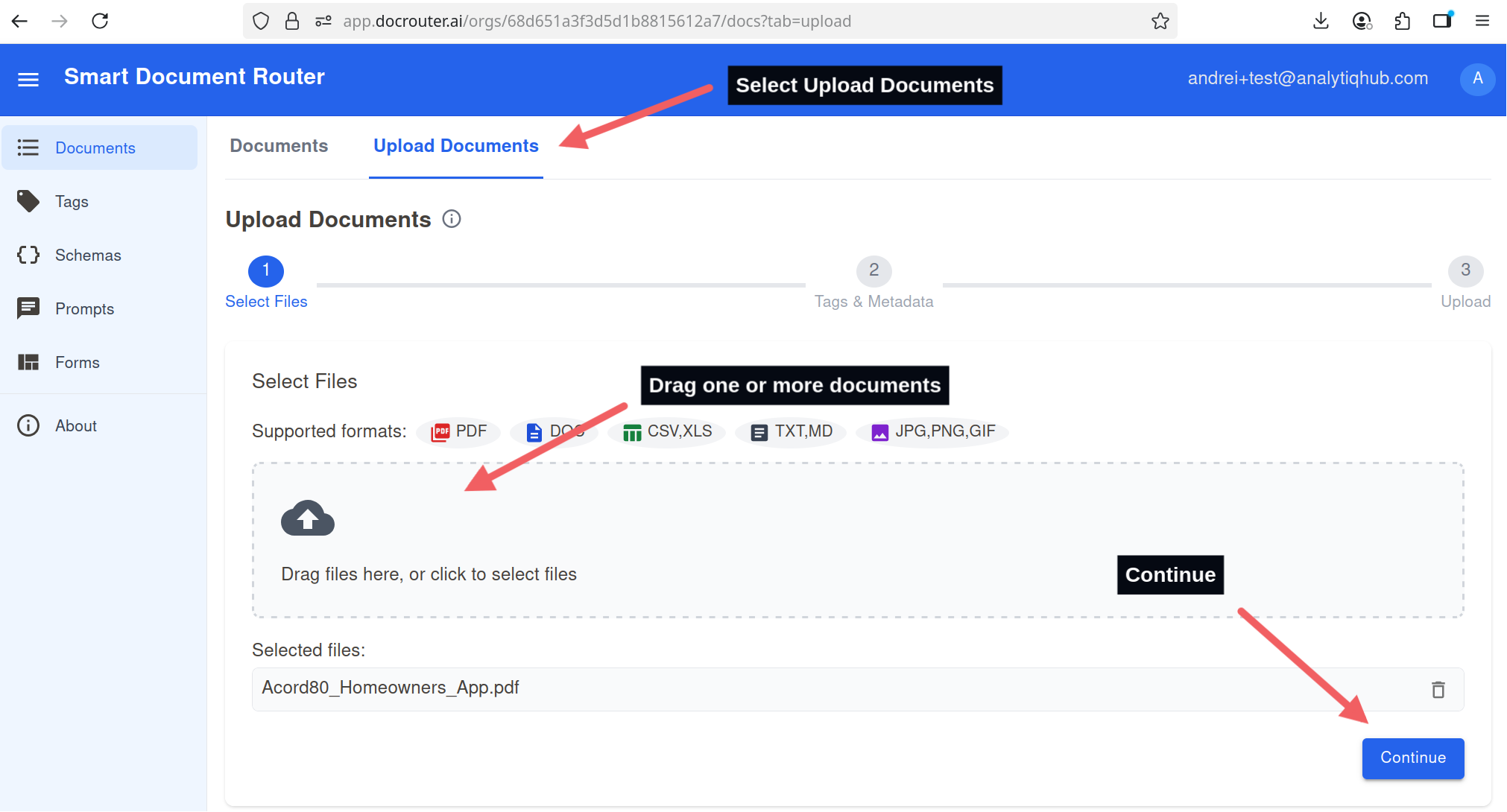
- Click "Upload Document".
- Select your file.
- In the Tags dropdown, select the tag you created in Step 1.
- Click Continue.
Wait for processing to complete and view your data.
Review Extractions
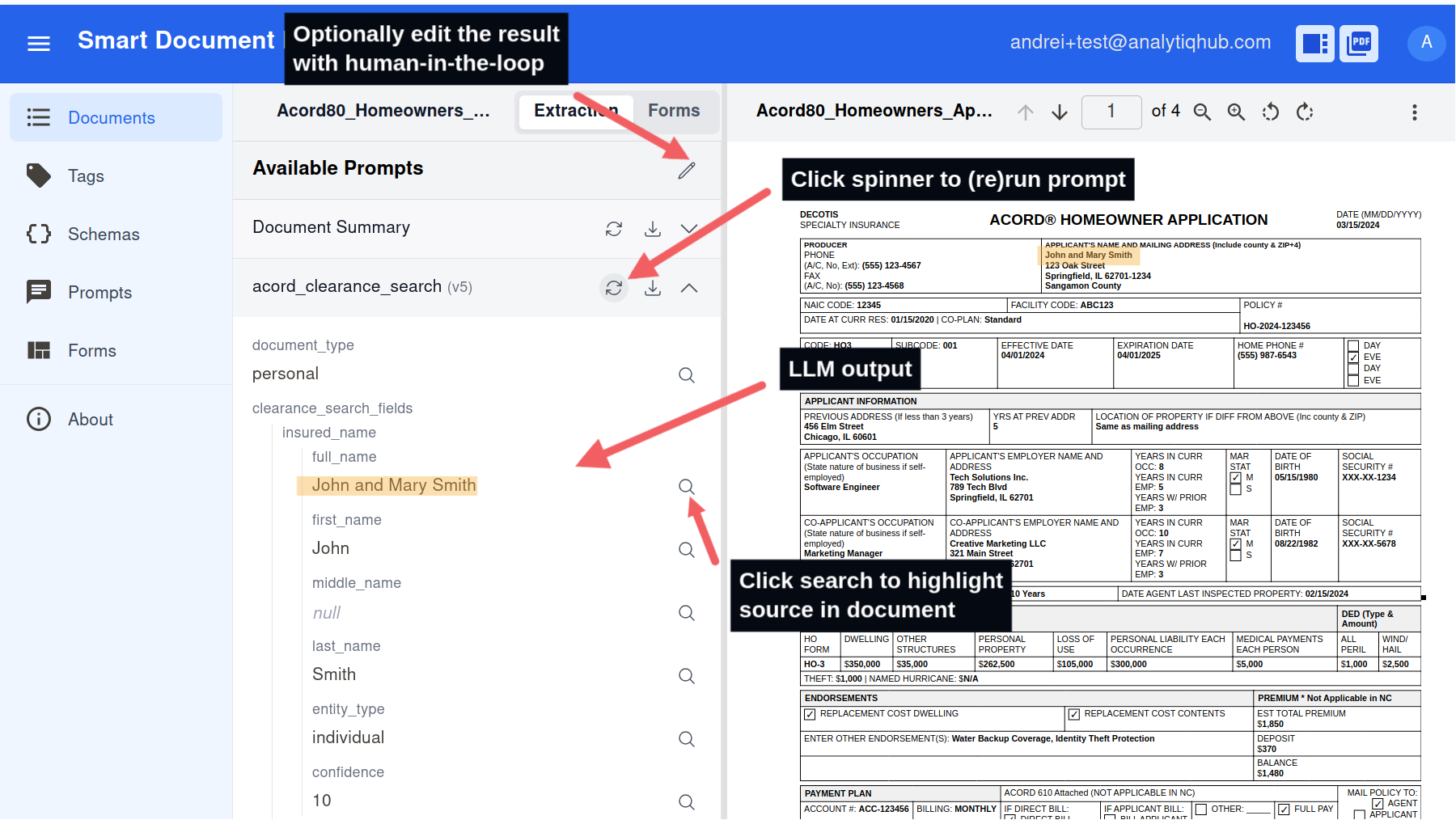
- Wait for status
llm_completed. - Click the document name.
- Go to the Extractions tab to see structured data.
We'll refine our prompts to get better and more accurate results.
Extract the following information from this invoice:
- Invoice number
- Invoice date (format: YYYY-MM-DD)
- Vendor/supplier name
- Total amount
- All line items with descriptions, quantities, unit prices, and totals

Format the response as JSON matching the provided schema.
Be precise with numbers and dates.
Testing and Iteration
- Test with sample documents
- Review extracted data quality
- Refine schema and prompts
- Repeat until accuracy meets requirements
We'll process multiple documents at once to handle larger volumes.
Upload pre-tagged documents at scale
- Setting the document tag at upload time
- Prompts matching the tag will run automatically.
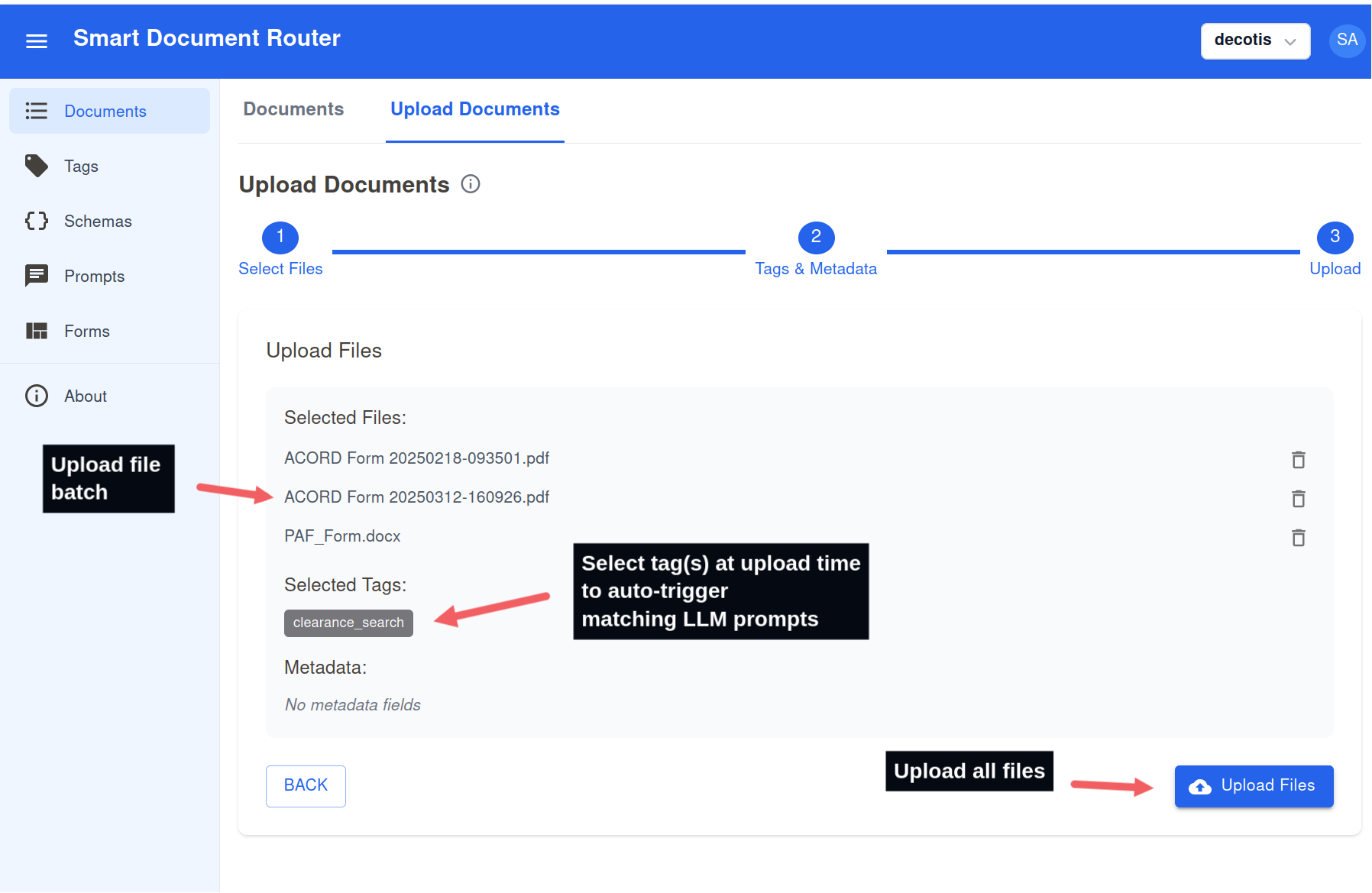
Upload many files at once and apply tags so prompts run automatically.
Update prompts and re-run on documents at scale
- Open the Documents list and filter by the tag used by your prompt.
- Click Actions → Run LLM.
- Select the updated prompt and confirm to run across all filtered documents.
- Monitor progress; re-run as you iterate on prompt or schema.
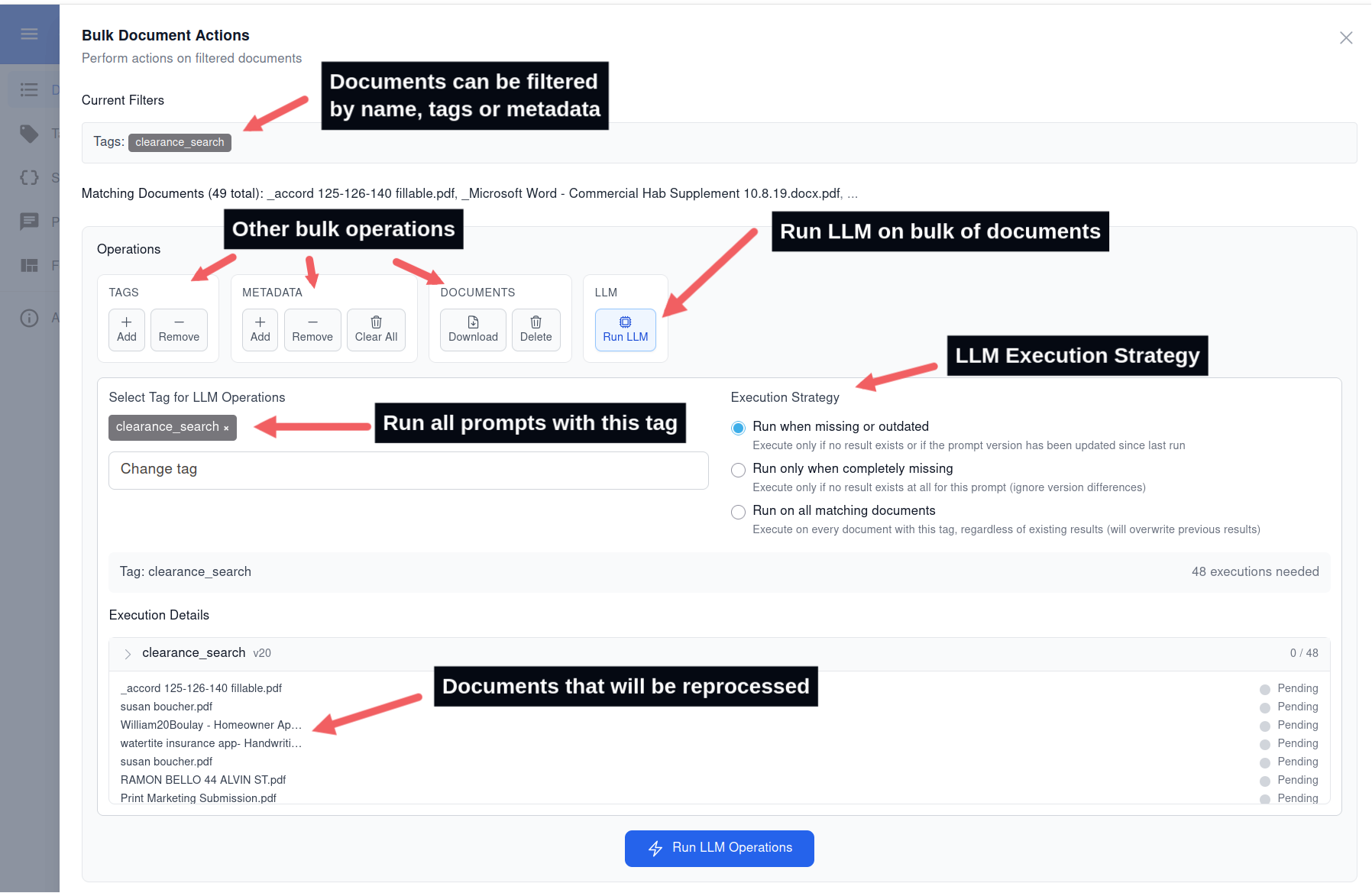
Use bulk Actions to apply an updated prompt to many documents at once.
We'll connect DocRouter to your systems for fully automated processing.
REST API Automation
DocRouter provides REST endpoints for automated document processing. Here are the key operations:
1. Upload Documents with Tags
# Upload documents with tags for automatic processing
curl -X POST https://api.docrouter.ai/v0/orgs/YOUR_ORG_ID/documents \
  -H "Authorization: Bearer YOUR_API_KEY" \
  -H "Content-Type: application/json" \
  -d '{
    "documents": [{
      "name": "fi.pdf",
      "content": "BASE64_ENCODED_CONTENT",
      "tag_ids": ["invoice_tag_id"],
      "metadata": {"source": "api_upload"}
    }]
  }'
2. List Documents and Check Status
# List documents with filtering
curl -X GET "https://api.docrouter.ai/v0/orgs/YOUR_ORG_ID/documents?skip=0&limit=10" \
  -H "Authorization: Bearer YOUR_API_KEY"

# Get specific document details
curl -X GET https://api.docrouter.ai/v0/orgs/YOUR_ORG_ID/documents/DOCUMENT_ID \
  -H "Authorization: Bearer YOUR_API_KEY"
3. Retrieve Extraction Results
# Get LLM extraction results (wait for state: "llm_completed")
curl -X GET https://api.docrouter.ai/v0/orgs/YOUR_ORG_ID/llm/result/DOCUMENT_ID \
  -H "Authorization: Bearer YOUR_API_KEY"

# Download all results for a document
curl -X GET https://api.docrouter.ai/v0/orgs/YOUR_ORG_ID/llm/results/DOCUMENT_ID/download \
  -H "Authorization: Bearer YOUR_API_KEY"
Document Processing States:
uploaded: Document uploaded, OCR pendingocr_processing: OCR in progressocr_completed: OCR complete, LLM processing pendingllm_processing: LLM extraction in progressllm_completed: All processing complete, results availablellm_failed: Processing failed
For more details, see - REST API Documentation.
Python SDK Automation
Refer to the Python SDK Reference.
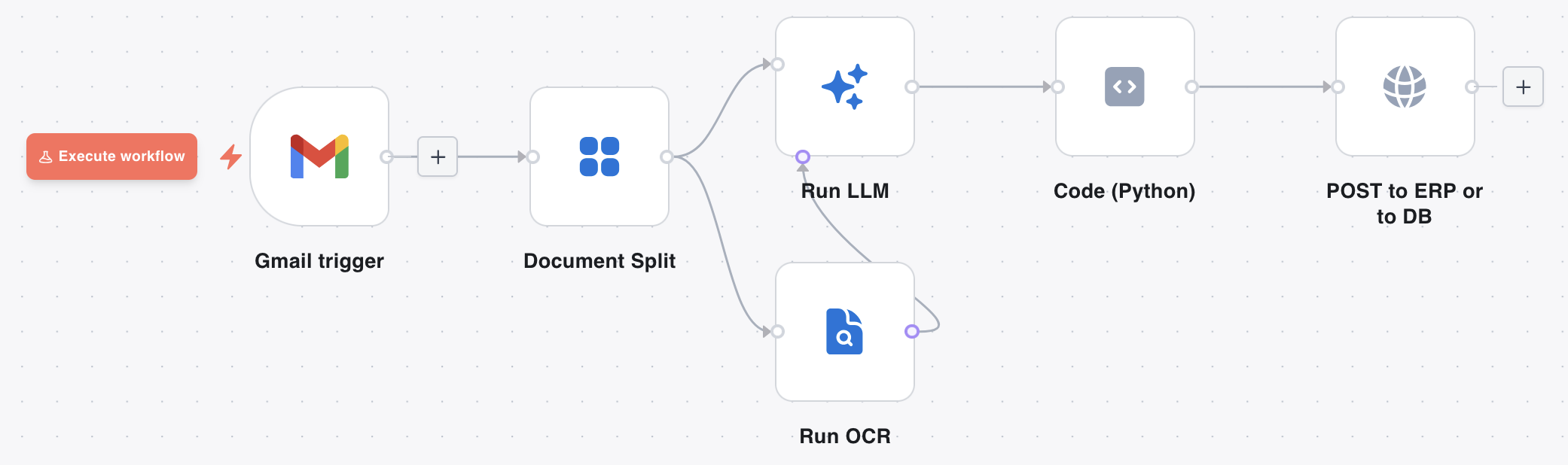
Build a visual pipeline that runs when documents are uploaded — split, OCR, LLM extraction, and optional downstream steps.
Build your first flow
- Open Flows in the left sidebar → Create flow.
- Add a Document event trigger. Set the event to
document.uploadedand filter by the tag from Step 1. - Add Document Split → Run OCR → Run LLM. Connect OCR output to the LLM node's second input.
- In Run LLM, select the prompt you created in Step 1.
- Click Execute workflow. Click each node to inspect inputs and outputs in the execution log.
For connector triggers (Gmail, Drive), post-processing code, and human-in-the-loop patterns, see the full DocRouter Flows guide.
Learn More
- Tags — Required routing mechanism that connects uploads to prompts
- Prompts — Author extraction instructions for your documents
- Schemas — Define structured JSON output for extractions
- Document Agent - Configure schemas, tags, and prompts with AI
- Knowledge Bases — Add reference context and power Knowledge Base Chat
- Knowledge Base Chat — Chat over your knowledge bases
- DocRouter Flows — Visual pipelines for split, OCR, LLM, connectors, and delivery