 DocRouter.AI
Many workflows need the model to see more than one document at once:
- an invoice validated against its contract
- or an invoice compared with the purchase orders
- one or more birth certificates and an optional marriage license attached to a legal petition
- or two versions of the same agreement for comparison.
All these scenarios can be in principle handled by concatenating the documents into a single document passed to the LLM. However, that approach is imperfect, because the LLM may not be able to differentiate between the documents.
DocRouter.AI documents, however, can have an associated metadata — a dictionary of key-value pairs. For example, an invoice and its contract might be uploaded with metadata like this (same vendor_id, different document_type).
Invoice (invoice.pdf):
{
  "invoice_id": "INV-33",
  "contract_id": "CONTR-44",
  "vendor_id": "VND-1847",
  "document_type": "invoice",
}
Contract (master-services-agreement.pdf):
{
  "contract_id": "CONTR-44",
  "vendor_id": "VND-1847",
  "document_type": "contract",
  "counterparty": "Acme Supplies Ltd."
}
If grouped by contract_id, both files are eligible to appear in one LLM run; document_type (and any other keys you add) can label each block for the model.
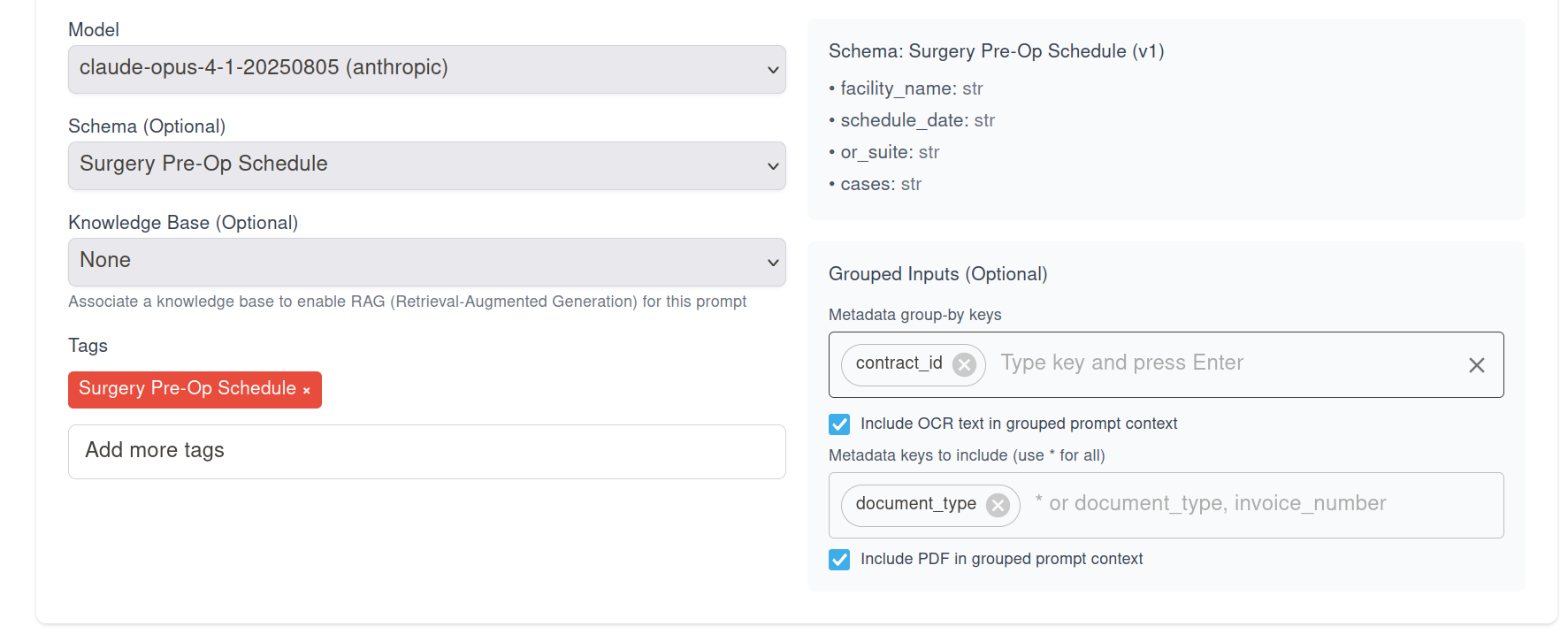
By this mechanism, DocRouter can attach multiple documents to an LLM call by configuring the LLM prompt with documents that share the same metadata values.
Controlling what gets attached or included in the prompt
You also have the option to enable whether OCR & metadata & PDF are attached to the prompt - or maybe only the OCR, or maybe only the PDF are attached.
- If the document group is large, you might choose to only attach the PDF to the prompt, or only the OCR, to save space.
Your instruction text stays plain prose: the app assembles a structured “documents” section for you. The document you clicked Run on is always Document #1; other matches follow in a consistent order (by upload time, then id) so results are reproducible.
What you see after a run
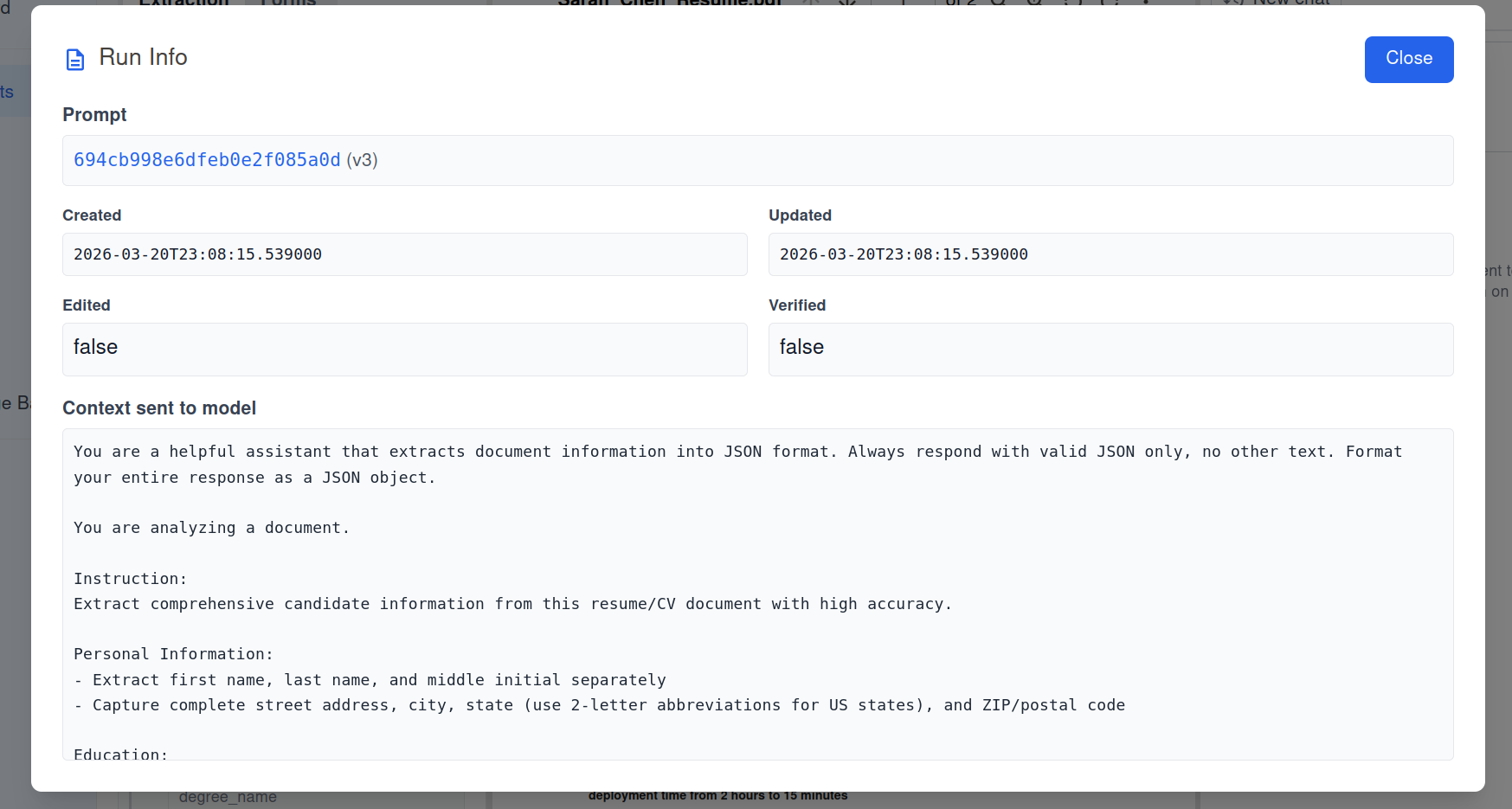
On a document, open Run Info from the extraction sidebar. For every completed run you get:
- Prompt — Which prompt revision ran (with a link to edit it when applicable).
- Timestamps and flags — Created, updated, edited, verified.
- Match values — Shown when the run used grouped inputs: the exact metadata key/value pairs that defined the peer group.
- Matched peer documents — Links to the other documents that were included besides the one you ran on (the current document is “you”; peers are the rest).
- Context sent to model — A readable snapshot of the prompt context (large binary parts are summarized so the view stays usable).
There is no separate “peer list” stored on the document. Group membership is computed at run time from metadata; Run Info is how you audit what was grouped for that extraction.
How the APIs behave
Prompts (create, update, read) — Prompt revisions expose the same options as the UI: peer_match_keys (list of metadata field names) and include (structured flags for OCR text, PDF, and which metadata keys to embed). Integrations and the SDKs treat these like any other prompt fields on the revision.
LLM results — When you fetch a result (REST or SDK), the payload includes a new run object:
| Field | Meaning |
|---|---|
run.prompt |
Sanitized text of the context that was sent (aligned with what Run Info shows). |
run.match_values |
The metadata values that defined the group, when grouping was used. |
run.match_document_ids |
Ids of peer documents only—the source document is not duplicated here because the result is already tied to that document. |
So downstream tools can answer: which prompt shape ran, which metadata matched, and which other files were in the bundle—without scraping the UI.
Summary
Grouped peer inputs let you declare a cohort by shared metadata, control what each file contributes (OCR, PDF, metadata fields), and inspect provenance on each run from the product or the API. You keep uploading and tagging documents as usual; the group is formed when extraction runs, and the document you run on stays first in the model’s view.