
DocRouter Flows — Visual Document Automation
DocRouter Flows
Visual, node-based automation for intelligent document processing — built into DocRouter.
Overview
DocRouter Flows is a visual workflow editor inside DocRouter. You drag nodes onto a canvas, connect them, run the pipeline, and inspect every input and output per step — the same interaction model popularized by tools like n8n, extended with document-native nodes (split, OCR, LLM extraction) and Apache 2.0 licensing so you can embed the platform in commercial products.
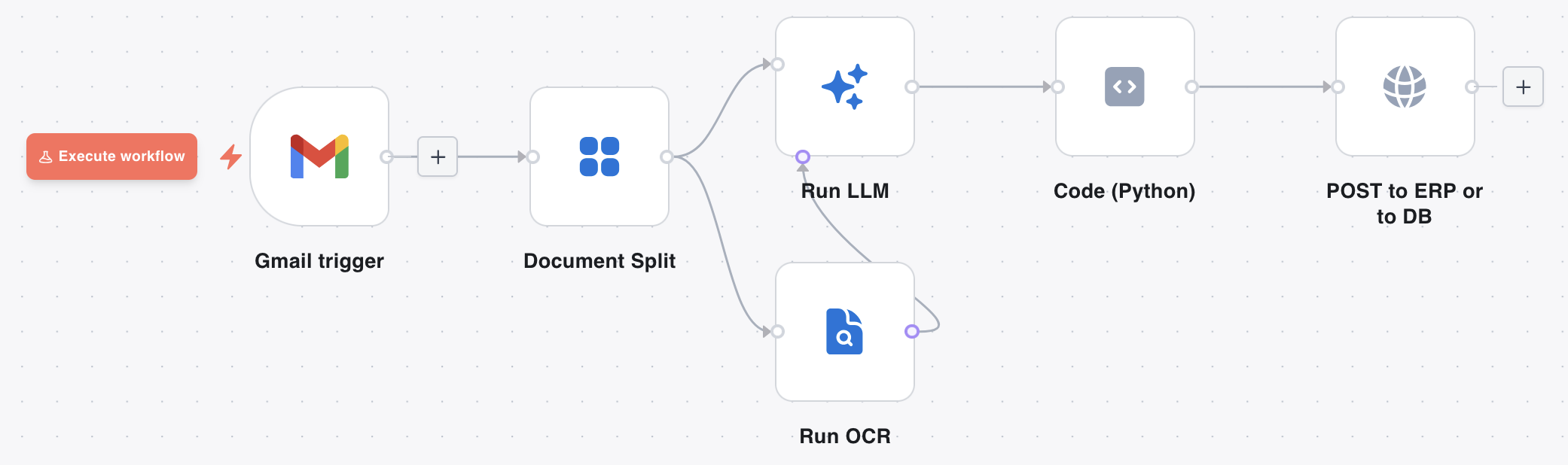
Flows connects ingestion, extraction, post-processing, and delivery in one product. No separate glue service required for the common path: Gmail → Document Split → OCR → LLM → ERP.
Before: Upload in DocRouter, wire webhooks to n8n or custom code, glue OCR and LLM steps yourself.
Now: Drag a canvas: Gmail → Split → OCR → LLM → ERP — one product, full execution log.
Open Flows from the left sidebar in the DocRouter app to create or edit pipelines for your organisation.
When to use Flows
| Goal | Recommended approach |
|---|---|
| Visual end-to-end document pipelines inside DocRouter | DocRouter Flows (this page) |
| Tag → prompt → upload extraction only | Quick Start — tags and prompts |
| Push extraction results to your backend on events | Product webhooks |
| Already use n8n community nodes | n8n integration |
| Microsoft Power Platform / cloud flows | Power Automate |
| Durable coded orchestration with custom retry semantics | Temporal |
| Simple REST upload and poll | REST API or SDKs |
For a deeper walkthrough, see the blog post DocRouter Flows: Visual Workflow Automation for Intelligent Document Processing.
Core concepts
If you have used n8n, these will feel familiar:
- Canvas — Drag nodes from a palette, connect output handles to inputs. Node shapes and connection style mirror n8n’s look and feel.
- Items — Every node receives and produces a list of items. Each item has a
jsonpayload (structured data) and abinarypayload (PDF pages, attachments). - Expressions — Parameters prefixed with
=reference upstream outputs (e.g.={{ $json.invoice_number }}). - Pin data — Freeze a node’s output so downstream nodes reuse it without re-running expensive OCR or LLM calls.
- Execution log — Per-node status, timing, inputs, outputs, and code-node print output. Click any node after a run to inspect what flowed through it.
- Credentials — OAuth tokens and API keys stored once per organisation under Settings → Credentials, injected at runtime — never stored in the graph.
Per-node error handling: Each node has an on error setting — stop the run (default) or continue with an error-envelope item downstream.
Node types
Document-native
Nodes purpose-built for IDP — no n8n equivalent:
| Node | Purpose |
|---|---|
| Document event trigger | Fires on document.uploaded, llm.completed, etc., filtered by tag |
| Document Split | Splits a multi-page PDF into one item per page |
| Run OCR | OCR on PDF pages; output on a typed port |
| Run LLM | Runs a configured DocRouter prompt on binary input items; accepts OCR text on a second typed port |
The OCR output port only connects to the LLM node’s second input — one OCR result per page, matched to the corresponding LLM item.
Generic
| Node | Purpose |
|---|---|
| Code (Python) | Sandboxed def run(items, context) transforms |
| HTTP Request | Outbound REST to any API |
| Branch / Merge | Conditional routing and synchronisation |
| Webhook trigger | Start a flow from an inbound HTTP call (sync or async) |
| Schedule trigger | Cron-based runs with timezone support |
| Poll triggers | Gmail, Outlook, Google Drive, OneDrive — poll for new messages or files |
Disabled nodes are skipped during execution — useful when testing one part of a flow.
Quick start
After completing the Tag → Prompt → Upload path (Steps 1–3), build your first flow:
- Open Flows in the sidebar → Create flow.
- Add a Document event trigger. Set the event to
document.uploadedand filter by the tag you created in Quick Start. - Add Document Split → Run OCR → Run LLM. Wire OCR output to the LLM node’s second input.
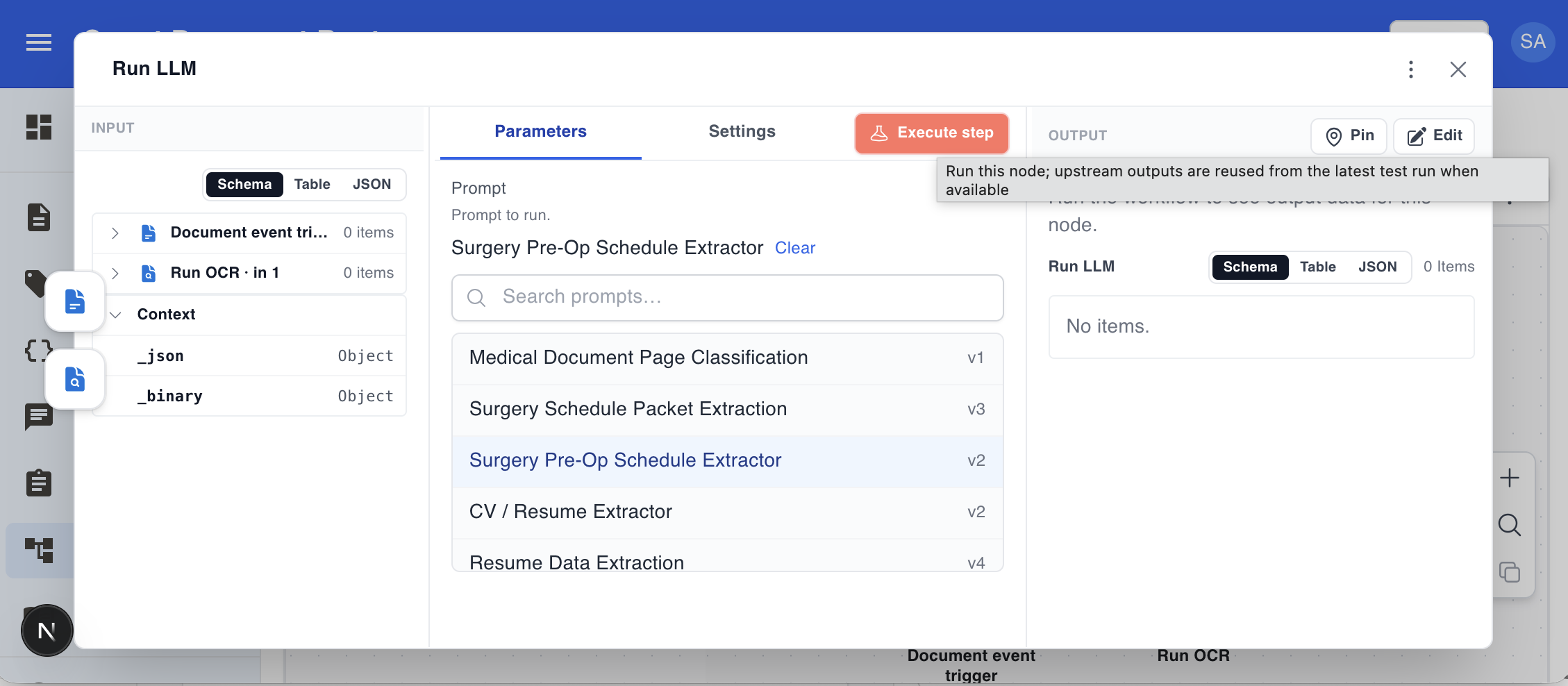
- In Run LLM, select your prompt from the searchable list. The node runs it against each binary input item (one page per item after split).
- Click Execute workflow. Click each node to inspect inputs and outputs in the execution log.
What a flow looks like
Configuring a node
Click any node to open its panel. The Run LLM node lets you pick one of your organisation’s DocRouter prompts and runs it against binary items from upstream nodes:
Cloud document connectors
Built-in trigger and action nodes for common enterprise sources:
| Source | Trigger | Action nodes |
|---|---|---|
| Gmail | Poll for messages matching a search query | Send, reply, update labels |
| Microsoft Outlook | Poll by received date | Send, reply, forward, move, flag |
| Google Drive | Watch a folder for new or updated files | Search, download, create folder, move, delete |
| Microsoft OneDrive | Watch a path for new or updated files | Search, list, download, upload |
Setup:
- Create a credential — Settings → Credentials → choose connector type (e.g. Gmail OAuth2) → complete OAuth.
- Add the trigger node — select credential, set poll interval, optional filter (e.g.
from:vendor@acme.com has:attachment). - Wire the rest — trigger emits one item per message or file; attachments arrive in the item’s
binarypayload.
The connector list is not closed. Once the architecture is in place, new integrations follow the same pattern — manifest, credentials, HTTP executor — and can often be scaffolded quickly with AI coding assistants like Cursor.
Recipe: Gmail → extraction → ERP
[Gmail trigger]
      │  (binary: pdf attachment)
      ▼
[Document Split]      ← one item per page
      │
   ┌──┴─────────────┐
   ▼                ▼
[Run OCR] ─────▶ [Run LLM]
                    │
                    ▼
        [Code (Python)]        ← shape fields for your ERP schema
                    │
                    ▼
          [HTTP Request]       ← POST to ERP or database
Example post-processing in a Code (Python) node:
def run(items, context):
    """Normalize LLM extraction fields before posting to ERP."""
    out = []
    for item in items:
        data = item.get("extraction") or item
        out.append({
            "vendor_name": (data.get("vendor_name") or "").strip(),
            "invoice_number": data.get("invoice_number"),
            "invoice_date": data.get("invoice_date"),
            "total_amount": float(data.get("total_amount") or 0),
            "currency": data.get("currency") or "USD",
            "line_items": data.get("line_items") or [],
        })
    return out
The HTTP Request node references these fields with expressions — e.g. ={{ $json.invoice_number }} in the POST body.
Recipe: Human-in-the-loop
For cases where LLM confidence is low or regulations require human sign-off, combine Branch, Code (Python), and HTTP Request nodes:
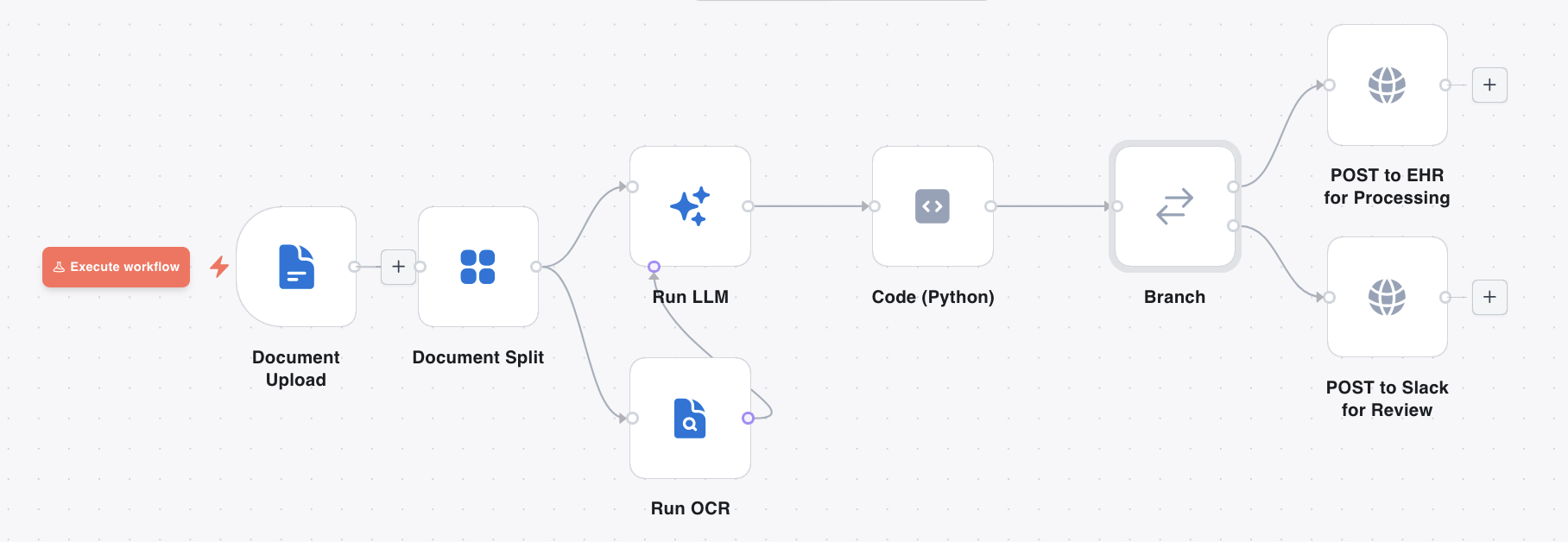
Typical pattern:
- Document event trigger → Document Split → Run OCR → Run LLM (extract patient or record identifiers).
- Code (Python) groups pages and sets a
human_reviewflag when grouping is ambiguous. - Branch routes clean records to an EHR integration; flagged records go to Slack, a ticketing system, or a review queue.
- Optional second flow with a Webhook trigger waits for an approval callback before continuing.
Every execution records per-node inputs, outputs, timing, and logs in the Executions panel.
Learn more
- Flows blog post — Visual workflow automation for IDP
- Architecture — System overview, document pipeline, and Flows runtime
- Prompts — LLM instructions used by the Run LLM node
- Tags — Filter document event triggers and route uploads
- Webhooks — Product event notifications (distinct from flow webhook triggers)
- External workflows — n8n, Power Automate, Temporal
- REST API — Programmatic flow management (coming to SDK docs)
- Open Source — Apache 2.0 license and self-hosting
- On-Prem Installation — Docker Compose, Kubernetes, and cloud configuration